
QR-Access on Homescreen
Here's a simple trick to access QR-Access without having to scan the QR code for convenience.
iOS devices with Safari (iPhone, iPad)
After you have scanned the QR-Code and have accessed the chemical list on your mobile device.
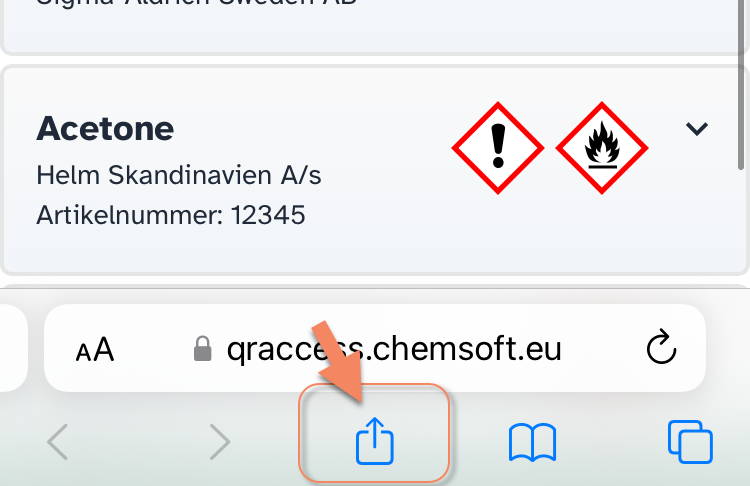
Press Share Link button on bottom of the page.
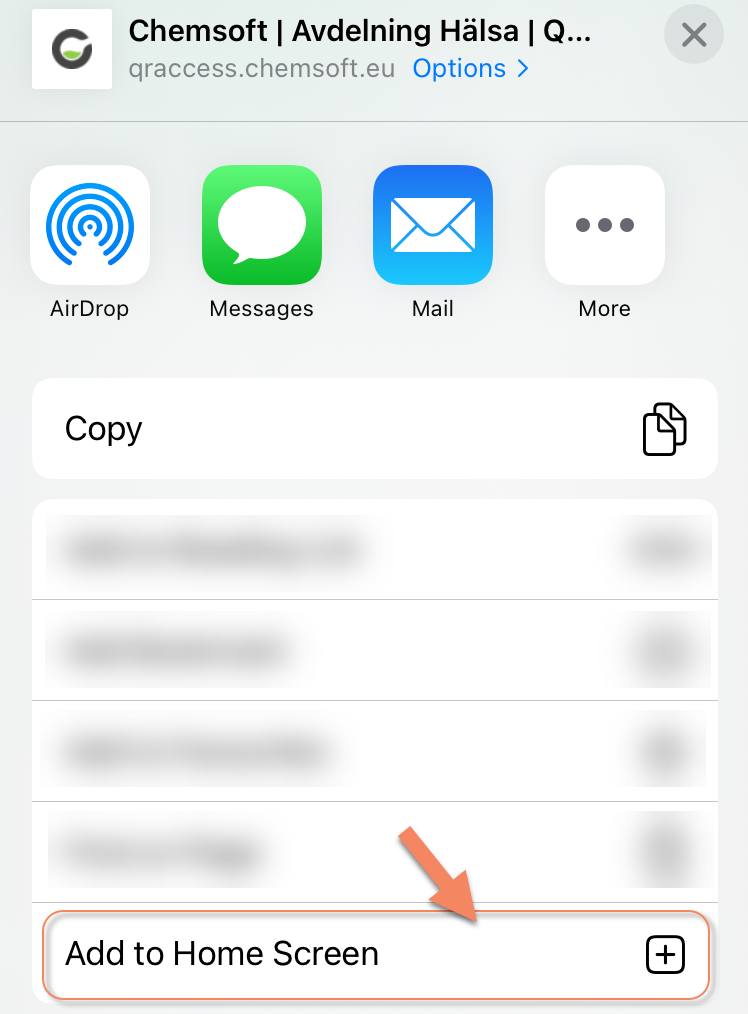
Select Add to Homescreen
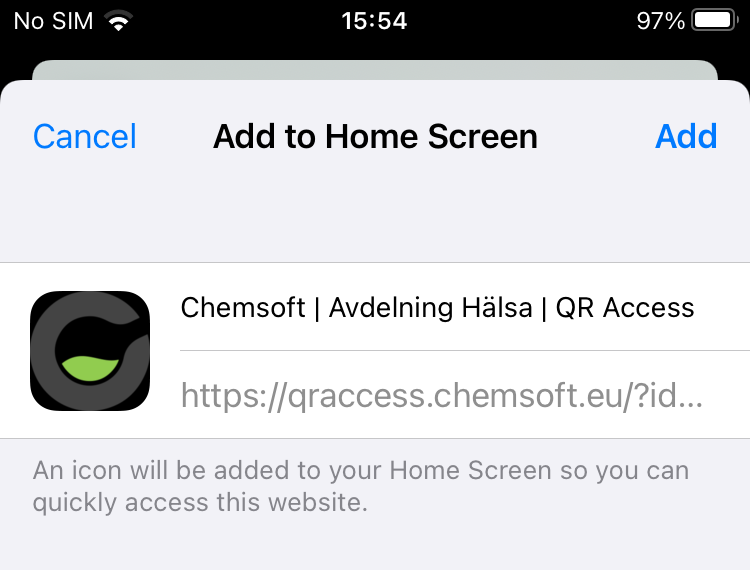
Proceed with Add
Chemsoft icon will now show up as an app/shortcut on homescreen.
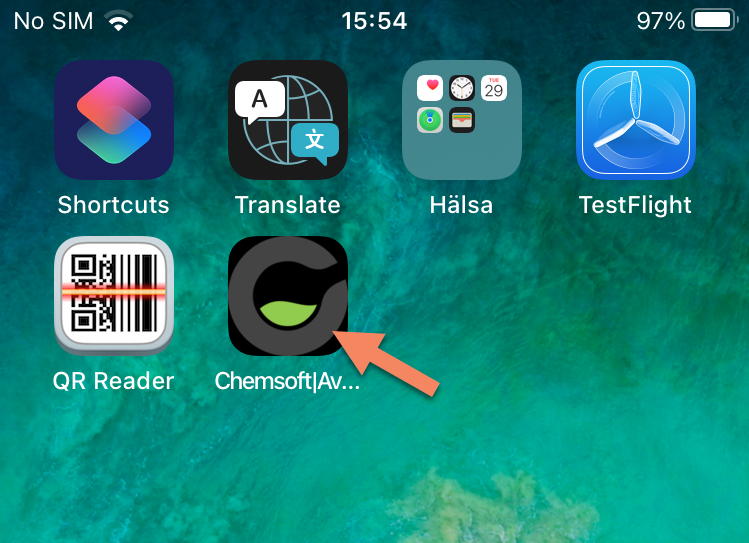
You can do this on several QR codes for easy access to multiple chemical lists.
Android devices with Chromium based browsers (Edge, Samsung Internet, Google Chrome)
After you have scanned the QR-Code and have accessed the chemical list on your mobile device.
Open menu from top-right corner
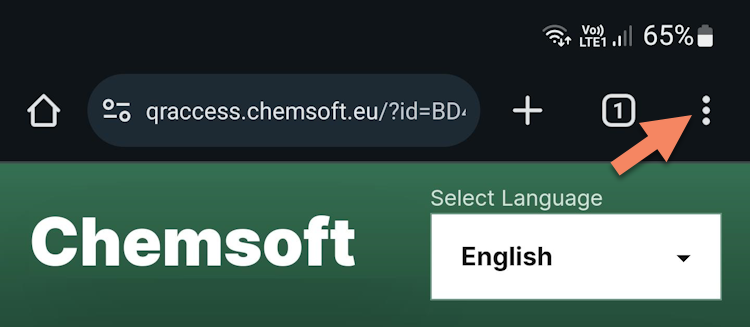
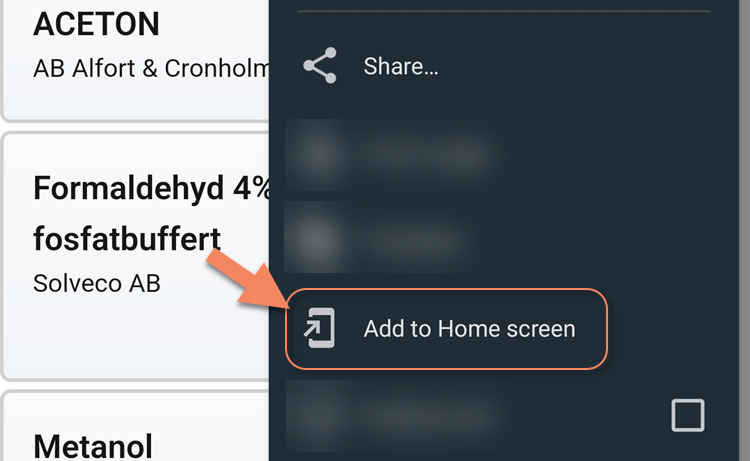
Select Add to Home screen
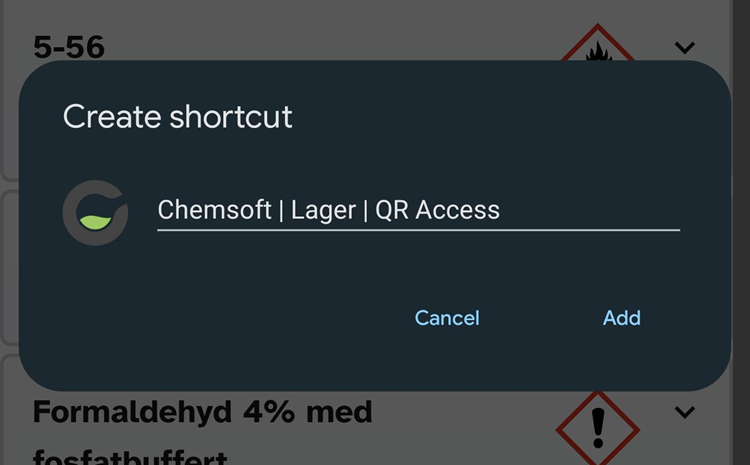
Enter name of shortcut and click Add
Chemsoft shortcut will then show up in homescreen with an app-icon.
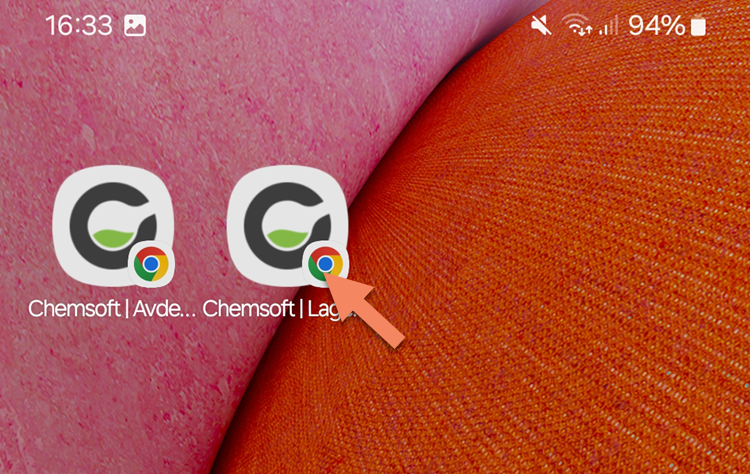
Just like on iPhone, you can do this on several QR codes for easy access to multiple chemical lists.
Things to Consider About QR-Access QR-Access is designed to provide quick access to chemical inventories and Safety Data Sheets (SDSs) without requiring a login. The feature is primarily intended for local use, for example at chemical storage cabinets or in areas where chemical products are handled and stored. Please note that the list may also include products marked as confidential in Chemsoft. This is to ensure that important safety information is available in situations such as accidents or emergency response operations where logging in may not be possible or appropriate. The QR code therefore functions as an access key and should only be placed where this information is intended to be available. If a department contains confidential products, explosives, or other sensitive information, it is recommended that chemical information be accessed through the standard role-based login in Chemsoft instead. |